Monthly Overview of Working Hours, Premiums and Time Accounts
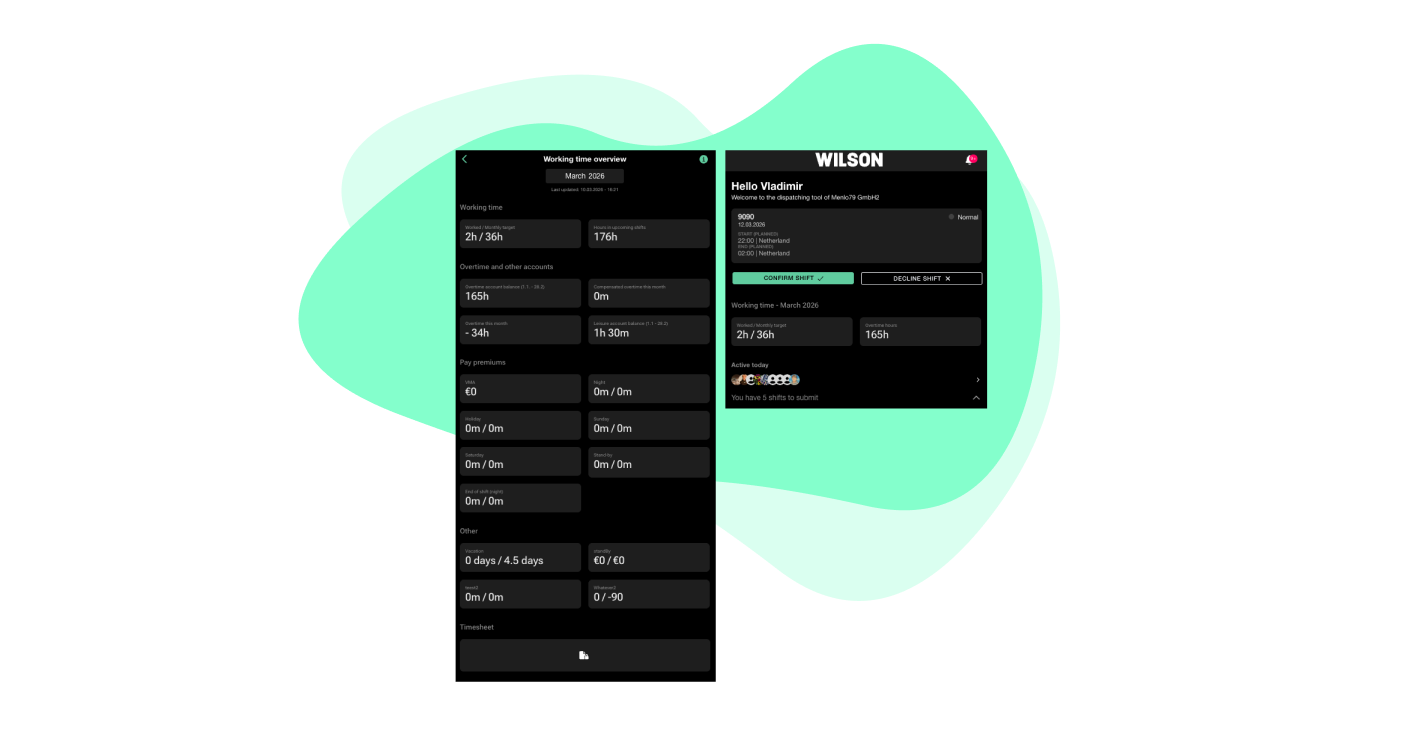

In the mobile app, you can view your working hours in two places: in the home widget on the start screen and in the working hours dashboard.
Home widget
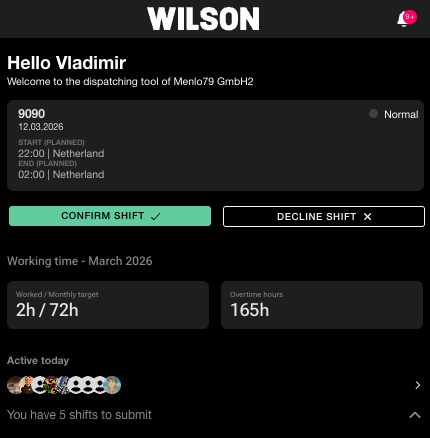
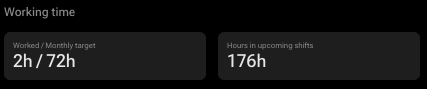
On the start screen, we display a widget that gives you a quick overview of how many hours you have already worked in the current month and how many hours are planned for you. “Worked” includes all hours that have been recorded and submitted by the employee independent of approved by a portal user.
For employees with a monthly working time model, the planned hours are based on the target hours configured in WILSON. For employees with a weekly model, the hours are prorated for the current month. Public holidays as well as absences such as vacation or sick leave reduce the planned working time accordingly.
You can also see the current balance of your overtime account. For this, we consider the period from the beginning of the year up to and including the last completed month.
Working Hours Dashboard
For a more detailed overview, you can access the working hours dashboard either by tapping the home widget or via your profile under “Working Hours”.By default, the current month is always displayed. You can use the calendar to switch to any other month.
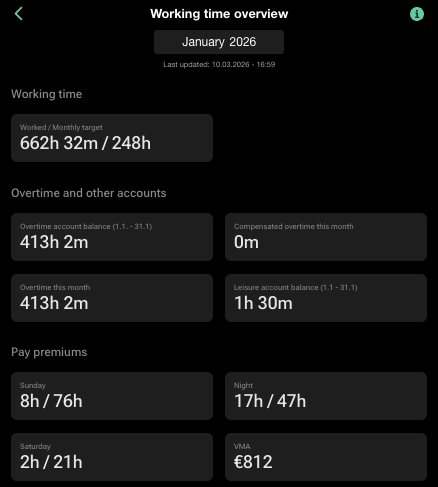
The dashboard contains several sections:
Working hours
Here you can see the information from the home widget, supplemented by an indication of how many hours are already scheduled for you in future shifts within the selected month.
Based on the information showing how much you have already worked in the current month, how many target hours you need to reach, and how many hours are still scheduled for you in shifts during the rest of the month, you can better assess where you currently stand and whether you are likely to build up overtime or undertime.
Overtime and other accounts
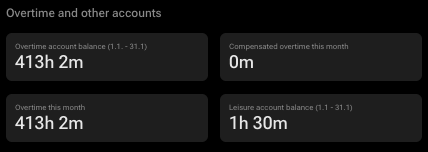
In this section, you will find all information related to your overtime. In addition to the current balance of your overtime account, we also show whether overtime was paid out to you in the selected month and in what amount.
You can also see how much overtime has accrued in the current month. In addition, other accounts linked to your overtime account are displayed, for example a leisure account with its corresponding balance. For the account balance, we consider the period from the beginning of the year up to and including the last completed month.
Premiums
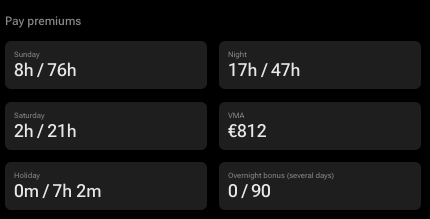
In this section, you can see an overview of all premiums that have been defined in your payroll settings.
For each premium, we show you two values:
- the hours you submitted, meaning hours you reported when submitting your shift
- the hours that have already been marked as accepted in the portal, meaning hours that have been internally reviewed and approved
The period always refers to the selected month.
If submitted hours are accepted with a delay in your company, this section already gives you an initial indication of which hours are likely to fall into the respective premium category. However, the value shown on your timesheet is always the binding one. In the per diems section, we can only display a value once your reported hours are accepted.
Other
In this section, all values are displayed that your company has custom created in the payroll settings and that do not depend on overtime. The display follows the same format as in the “Premiums” section.
Timesheet
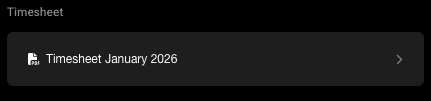
If a timesheet has been created and sent for the selected month, you can view and download it here. A timesheet is only available if it has been generated in the portal.
Settings
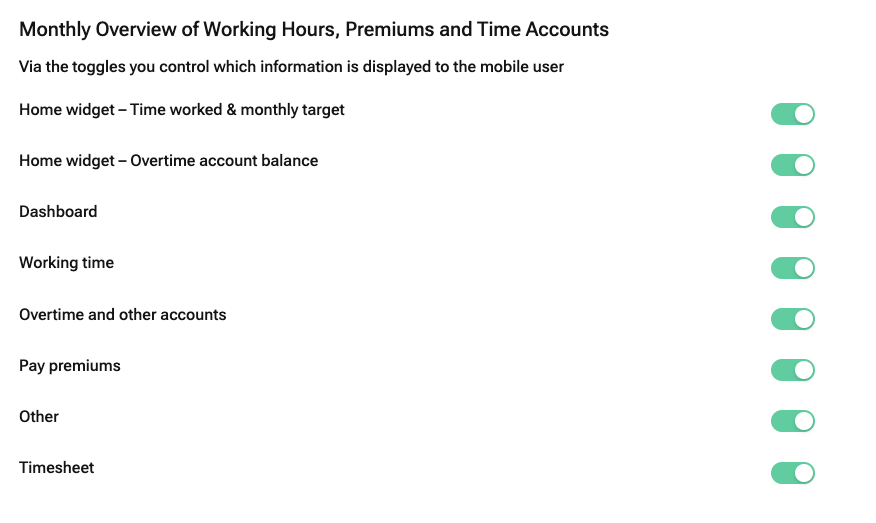
In the settings for the mobile app (Administration > Company settings > Mobile app), you can configure which information is displayed to users of the mobile app.