
Qualification Profiles
Qualification Profiles let you group multiple qualifications into a single reusable bundle. This allows you to standardize requirements for specific activities, assignments, roles, or safety regulations — and quickly check during shift planning whether all employees meet the necessary prerequisites.
Why use Qualification Profiles?
Checking qualification requirements manually, one by one, is error-prone and time-consuming — especially in industries with high safety and compliance demands such as rail operations and rail construction.
With Qualification Profiles, you can:
- Create qualification bundles once and reuse them across many activities
- Ensure every shift meets internal and legal compliance requirements
- Instantly spot compliance gaps without checking each qualification individually
- Define staffing targets for specific profiles and identify training needs early
Typical use cases:
- Rail industry activities requiring multiple safety certifications (e.g. track safety supervision, route knowledge, first aid)
- New joiners who must meet a specific baseline profile before being assigned to shifts
- Regularly recurring shifts with consistent qualification requirements
Building blocks of a Qualification Profile
A profile consists of:
- Profile name – A clear, descriptive name, e.g. "Track Safety Supervisor" or "New Joiner Baseline"
- Qualifications – One or more qualifications that together define the profile
- Demand – The minimum number of employees in your organization who should fulfill this profile (used for planning purposes)
Qualification Profiles overview
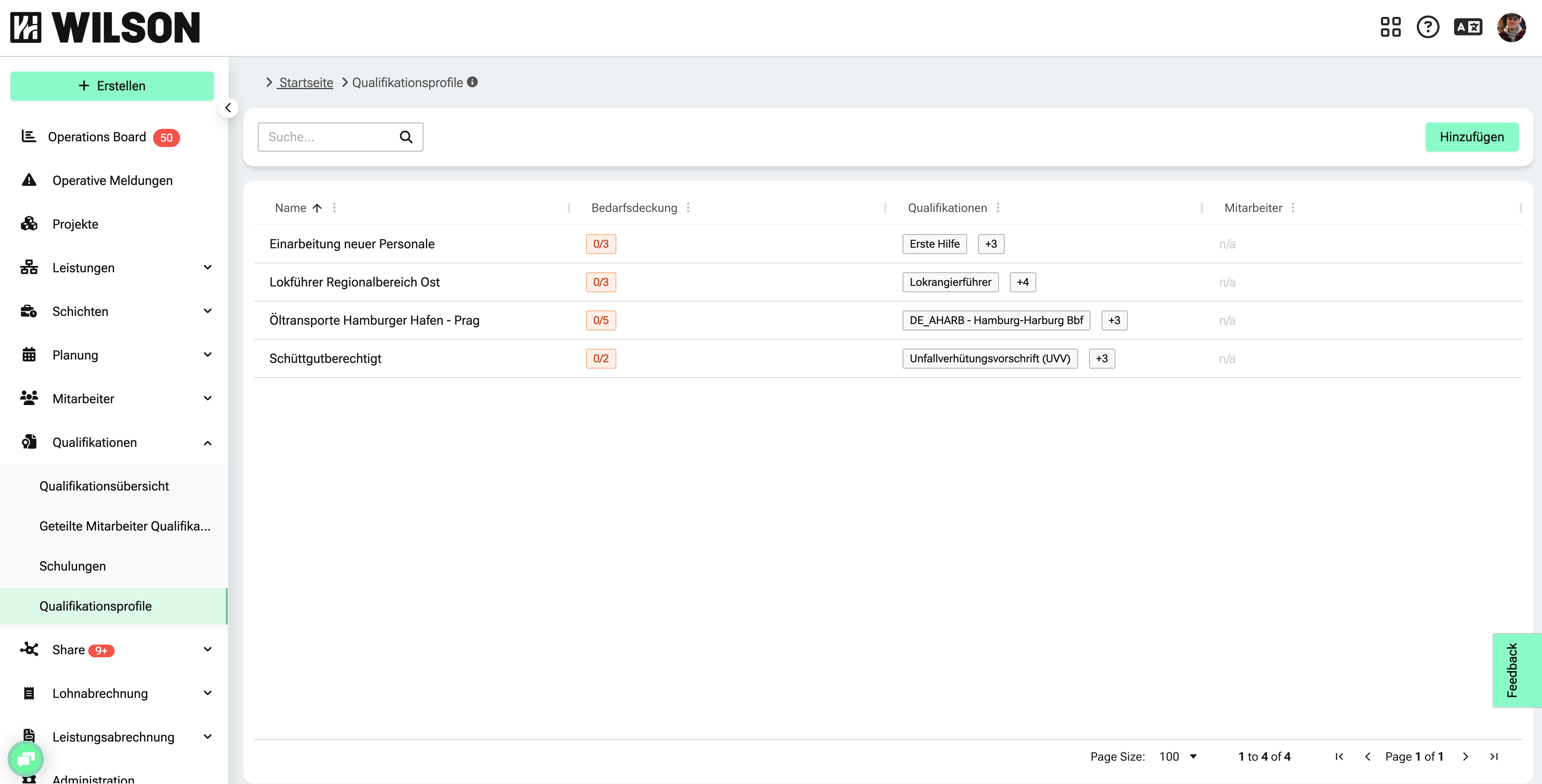
The overview page shows all active profiles in a table. From here, you can create new profiles, edit existing ones, and assess your team's coverage at a glance.
To access the overview:
- Navigate to Qualifications > Qualification Profiles in the main menu.
- The table shows all active profiles with their name, included qualifications, and number of assigned employees.
- Use the search bar to find profiles by name or included qualification.
- Click on a profile row to open and edit it
Create a profile
- Go to Qualifications > Qualification Profiles.
- Click Add in the top right.
- A side panel (drawer) opens with an empty form.
- Enter a profile name (required), e.g. "Track Safety Supervisor – North Zone".
- Optional: Enter the demand — the minimum number of employees in your organization who should fulfill this profile.
- Add qualifications: click Add in the top right of the qualifications section.
- Search for the qualification you want and select it.
- Repeat steps 6–7 for all additional qualifications.
- Remove a qualification at any time using the bin icon in its row.
- Click Save. The profile immediately appears in the overview table.
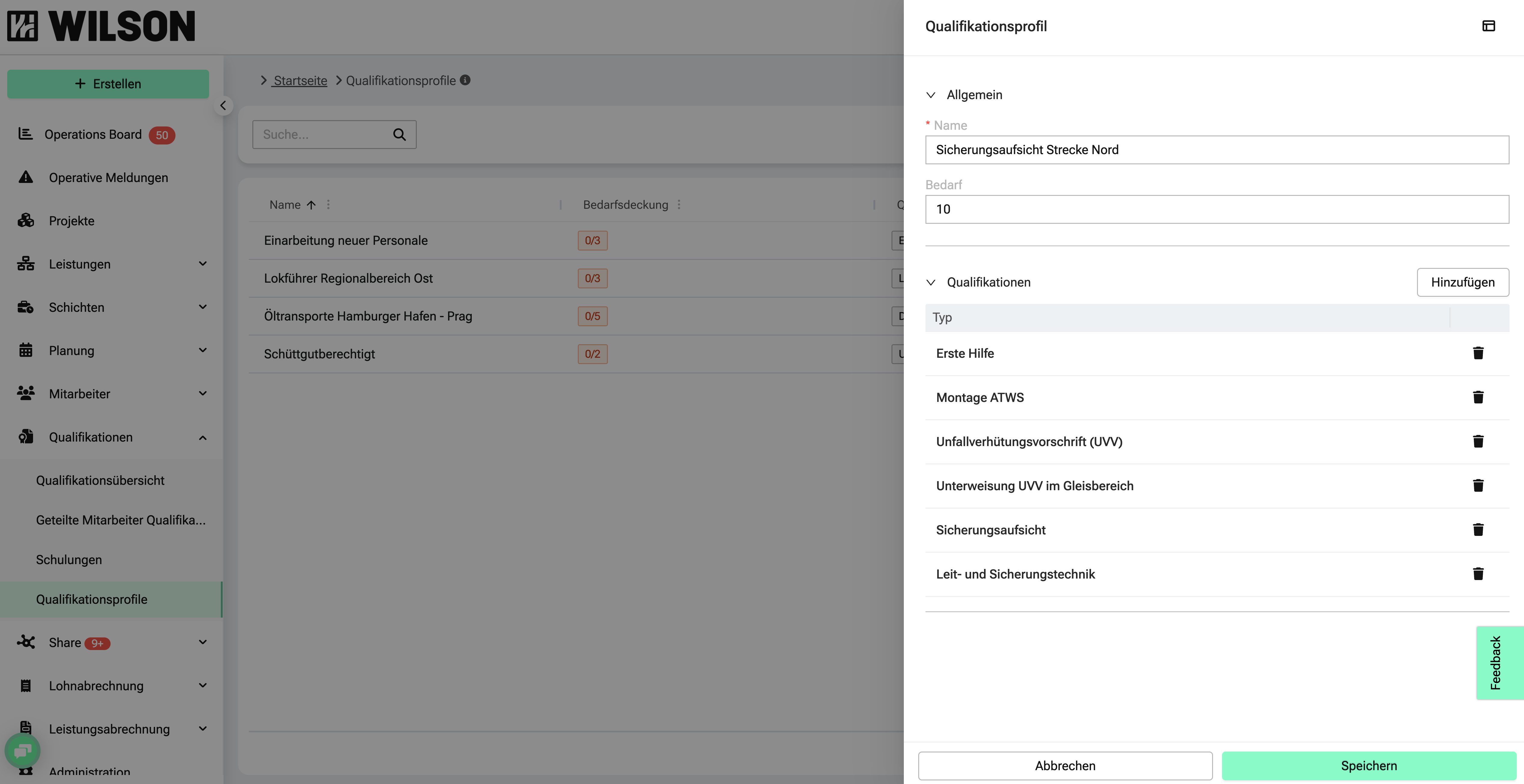
💡 Note: If you close the drawer without saving, a confirmation dialog will appear.
Edit a profile
- Go to Qualifications > Qualification Profiles.
- Click on the row of the profile you want to edit.
- The drawer opens, pre-filled with the current profile values.
- Update the name, demand, or qualifications as needed.
- If you change any qualifications, a notice appears at the bottom of the drawer: "Shift validation updating — Validation for all affected shifts using this profile will be automatically updated."
- Click Save. Changes are applied immediately and shift validation for all linked shifts is updated.

View employee coverage in a profile
The profile drawer includes an Employees section that shows you at a glance how well your team meets the requirements of a profile – so you can spot training needs without checking each person individually.
Coverage indicator
Each person in the list has a coverage indicator in the format x/y – the number of valid qualifications relative to the ones required by the profile:
- Green – all required qualifications are present and valid
- Yellow – some of the required qualifications are present
- Grey – none of the required qualifications are present
Suggested employees
Employees with a coverage of 75 % or more appear in the Suggested employees section at the top of the list. Below that, you'll find the full employee list. Both sections are sorted by coverage descending, then alphabetically by name.
Qualification status
Next to the coverage, you can see the qualification status for each person:
- X qualifications will soon expire
- X qualifications have expired
- X qualifications are missing
Hover over a status cell to see the full names of the affected qualifications in a tooltip. If the column shows n/a, all profile-relevant qualifications of that person are valid.
Assign a profile to an activity
Qualification Profiles can be assigned directly to an activity within a shift. The system then automatically checks whether scheduled employees hold all qualifications included in the profile.
- Open a shift in shift planning.
- Click on an activity to open the activity drawer.
- In the Qualification Profiles field, search for and select the profile you want to assign. (Multiple profiles can be selected at once.)
- Optional: Add individual qualifications that apply outside of any profile.
- Click Save.
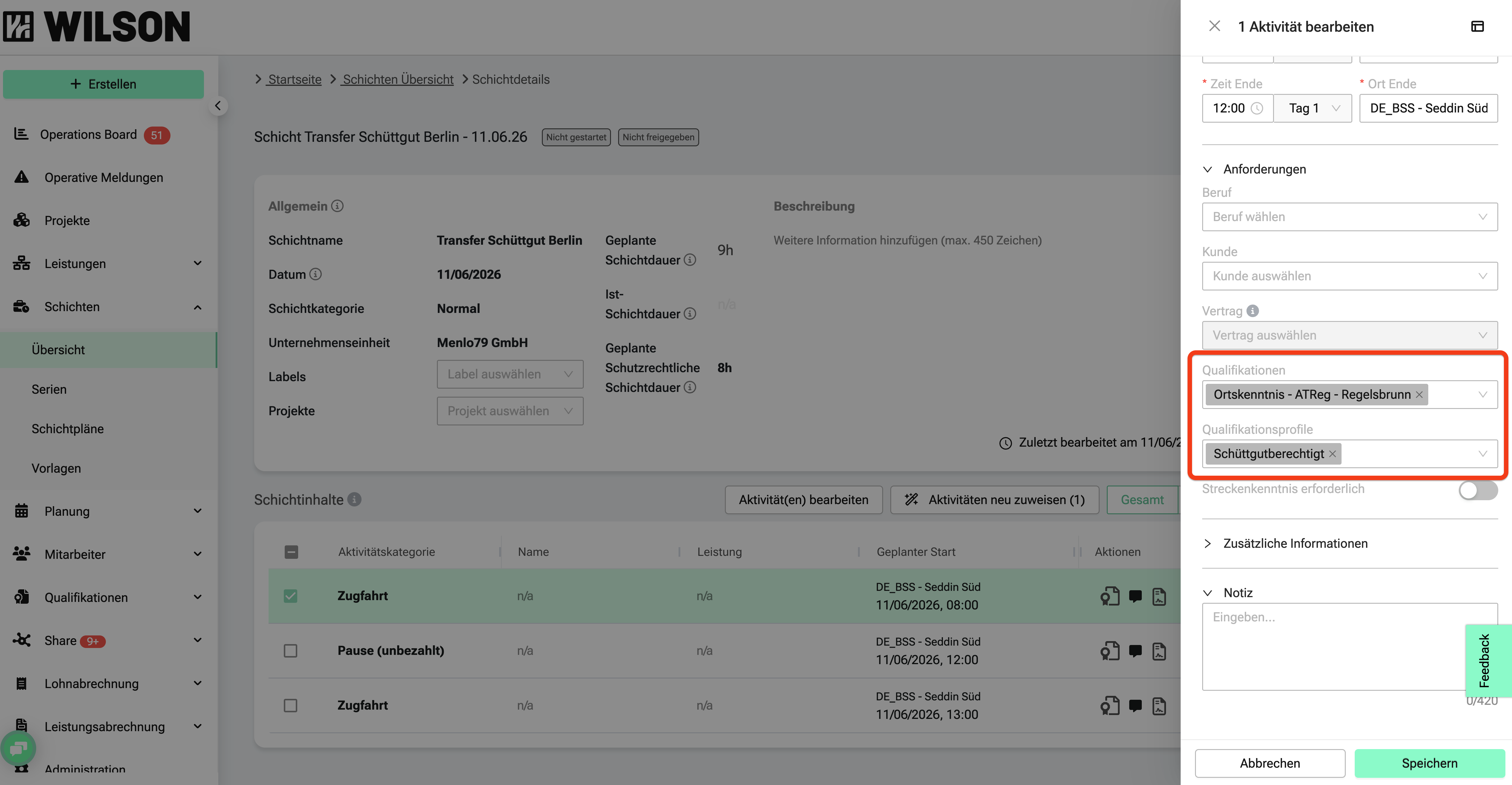
💡 Note: Profiles can be assigned to individual activities as well as via bulk edit across multiple activities at once.
Shift validation
Once a Qualification Profile is assigned to an activity, the system checks the following during shift validation:
- Individual qualifications: Does the employee hold each qualification assigned directly to the activity?
- Qualification Profiles: Does the employee hold all qualifications included in the assigned profile?
If one or more qualifications are missing, the system shows a warning. The message specifies which qualifications are missing — not which profile is unfulfilled.
Who can manage Qualification Profiles?
Action | Admin | Safety Manager | Dispatcher | Other roles |
|---|---|---|---|---|
Create & edit profiles | ✅ | ✅ | ❌ | ❌ |
Assign profiles to activities | ✅ | ✅ | ✅ | ❌ |
View profiles on activities | ✅ | ✅ | ✅ | ✅ (read only) |
View employee coverage & status | ✅ | ✅ | ❌ | ❌ |
Frequently asked questions
What happens if I add or remove a qualification from a profile?
Shift validation for all shifts using that profile is automatically re-run. You'll see a notice in the drawer before saving.
Can I assign multiple profiles to the same activity?
Yes. You can select multiple Qualification Profiles per activity. The system evaluates all of them cumulatively.
Can I combine profiles with individual qualifications on the same activity?
Yes. An activity can have both Qualification Profiles and standalone qualifications assigned at the same time. The system validates both independently.
What happens to existing shifts if I edit a profile?
All linked shifts are re-validated.
What's the difference between a Qualification Profile and a Profession?
Professions are fixed job categories. Qualification Profiles are flexible, self-defined groups of qualifications — ideal for operational and compliance requirements that vary by activity or project.
What does the coverage indicator in the profile drawer show? The indicator in the format x/y shows how many of the qualifications required by the profile a person currently holds as valid. Green means fully met, yellow partially met, grey means none at all.
What are suggested employees? Employees with a coverage of at least 75 % are shown in the Suggested employees section at the top of the list. They largely meet the profile requirements and are therefore well suited for the relevant tasks.